Use the Reviews screen to combine headers and questions into reviews.
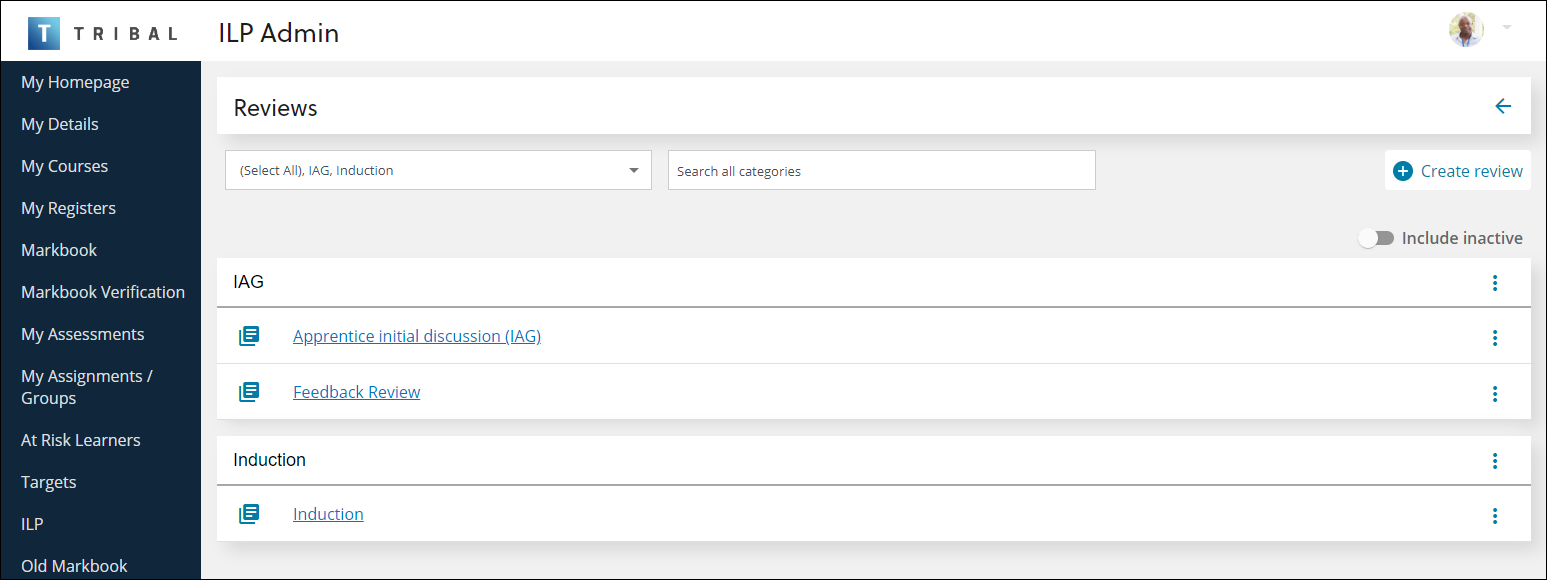
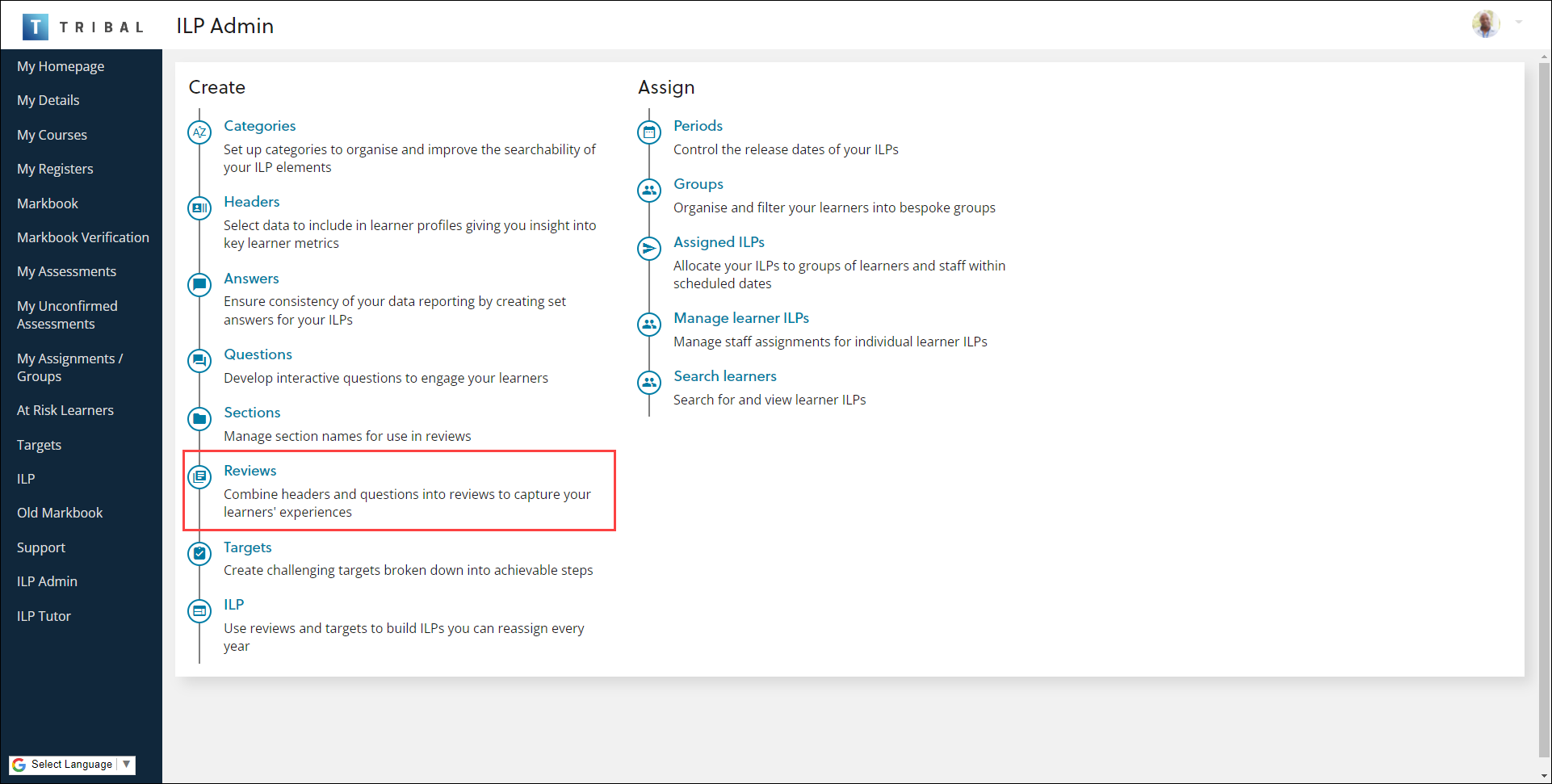
It can be accessed by selecting the Reviews option on the ILP Admin screen.
Use the Reviews screen to:
 Filter the list of reviews
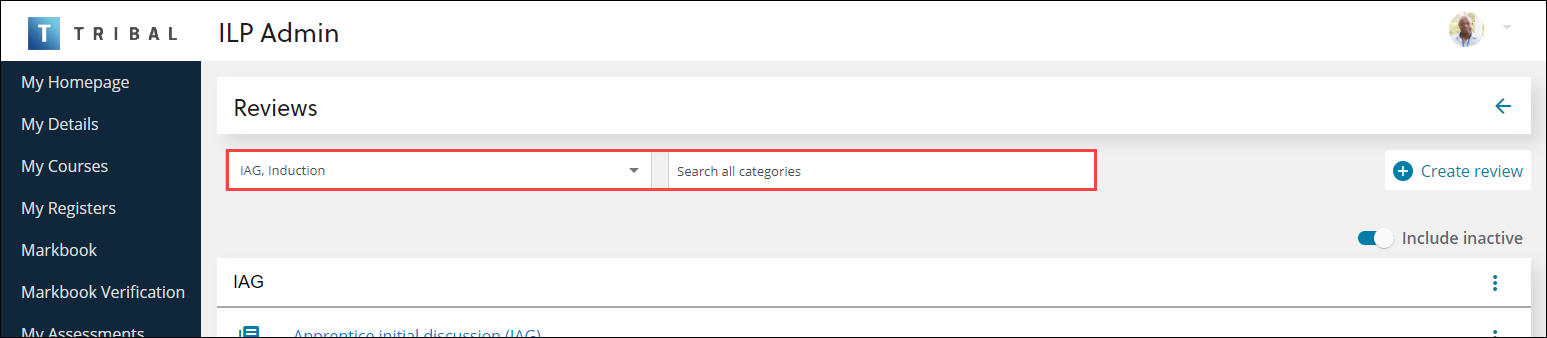
To filter the list of reviews, use the following fields at the top of the screen:
-
Categories drop-down - use this to select the categories (as defined on the Categories screen with a type of 'Review') to display
-
Search all categories - use this field to enter the name of the relevant category or review name. The search is carried out across all categories. The list is updated immediately.
Add or edit a review
To add or edit a review:
-
Select the Create Review button.
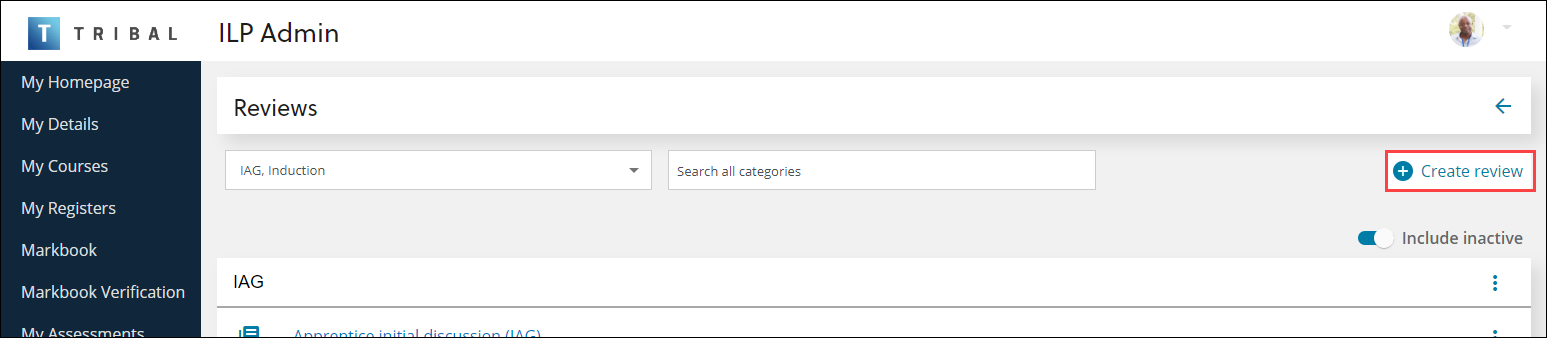
Alternatively, select the name of the review, or select the ⋮ drop-down menu of the relevant record and then select the Edit option.
 Important.You can use the filters to locate a specific review, if required.
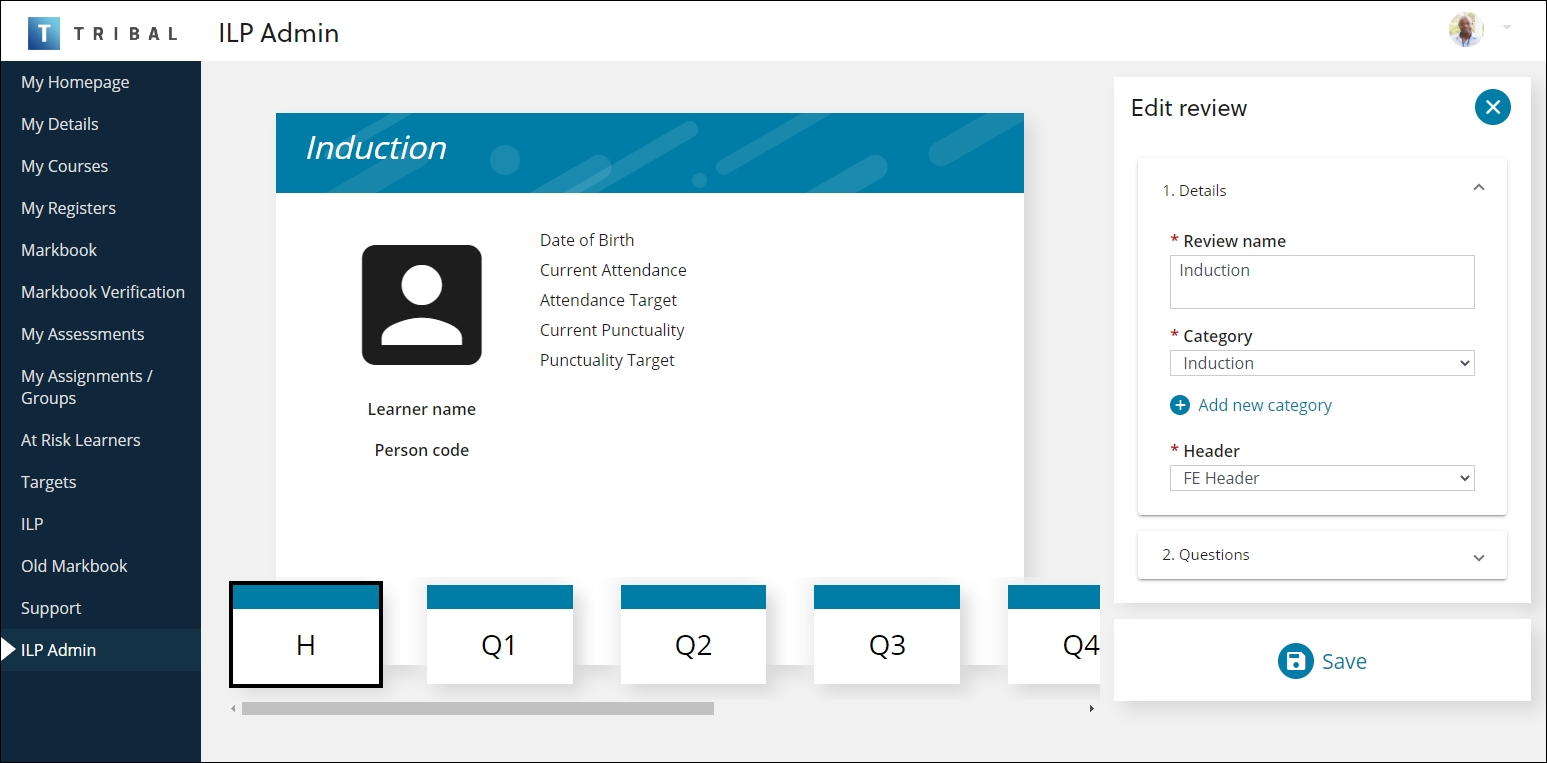
The review editor is displayed.
-
Enter or edit the relevant details in the 1. Details section of the Edit review panel.
The fields are described in the following table.
| This field | Holds this information... |
|---|---|
| Review Name | The name of the review. This must be unique. |
| Category |
The category of the review. Select from the drop-down list, which includes Categories with a type of 'Review'. Alternatively, select the Add new category button to create a new one. Important.You can manage categories on the Categories screen.
|
| Header |
The review header. Select from the drop-down list. Important.You can manage headers on the Headers screen.
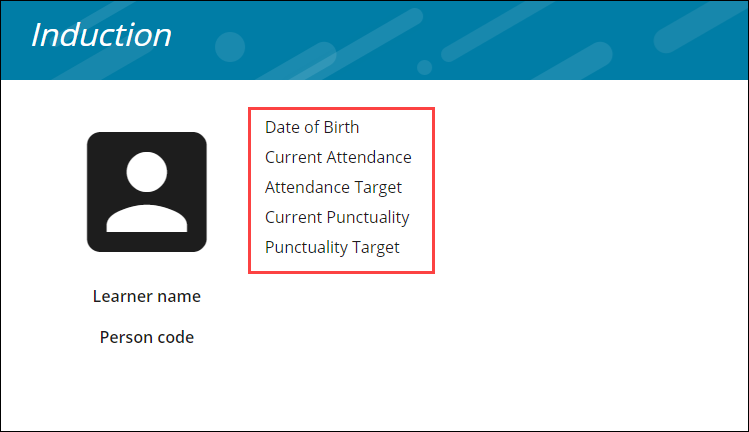
The fields in the main section of the review editor are updated immediately with the header fields.
|
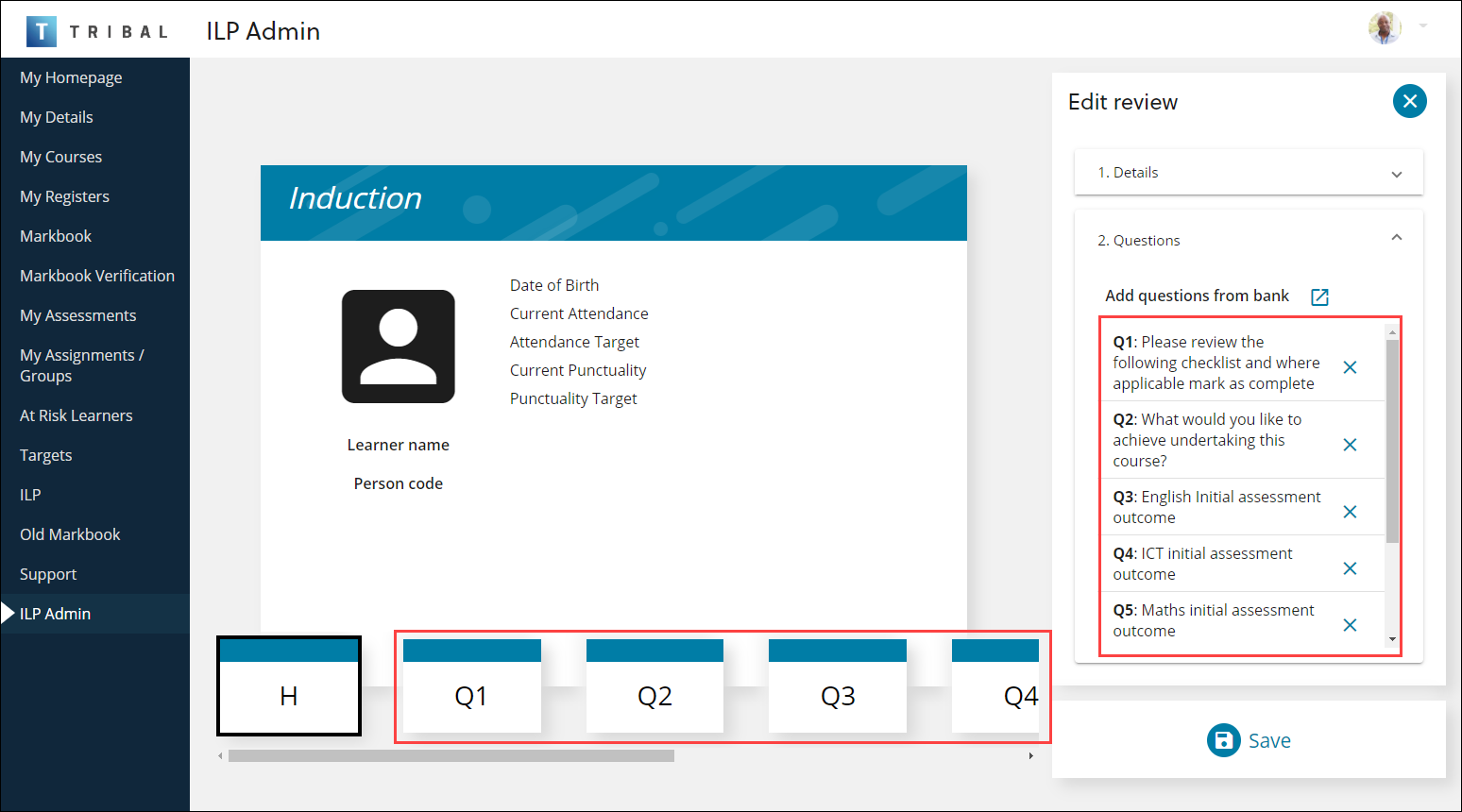
Section 2. Questions & Sections allows you to define the questions that you want to include in the review.
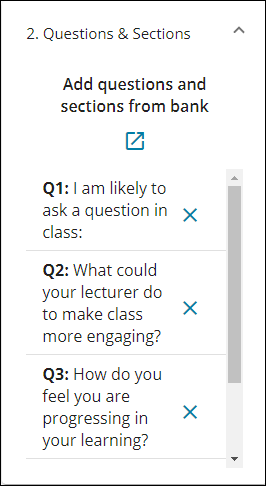
Any questions already added are listed in the panel but can be removed by selecting the cross.
-
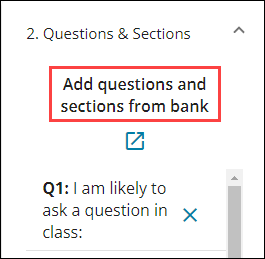
To manage the questions, select the Add questions and sections from bank icon.
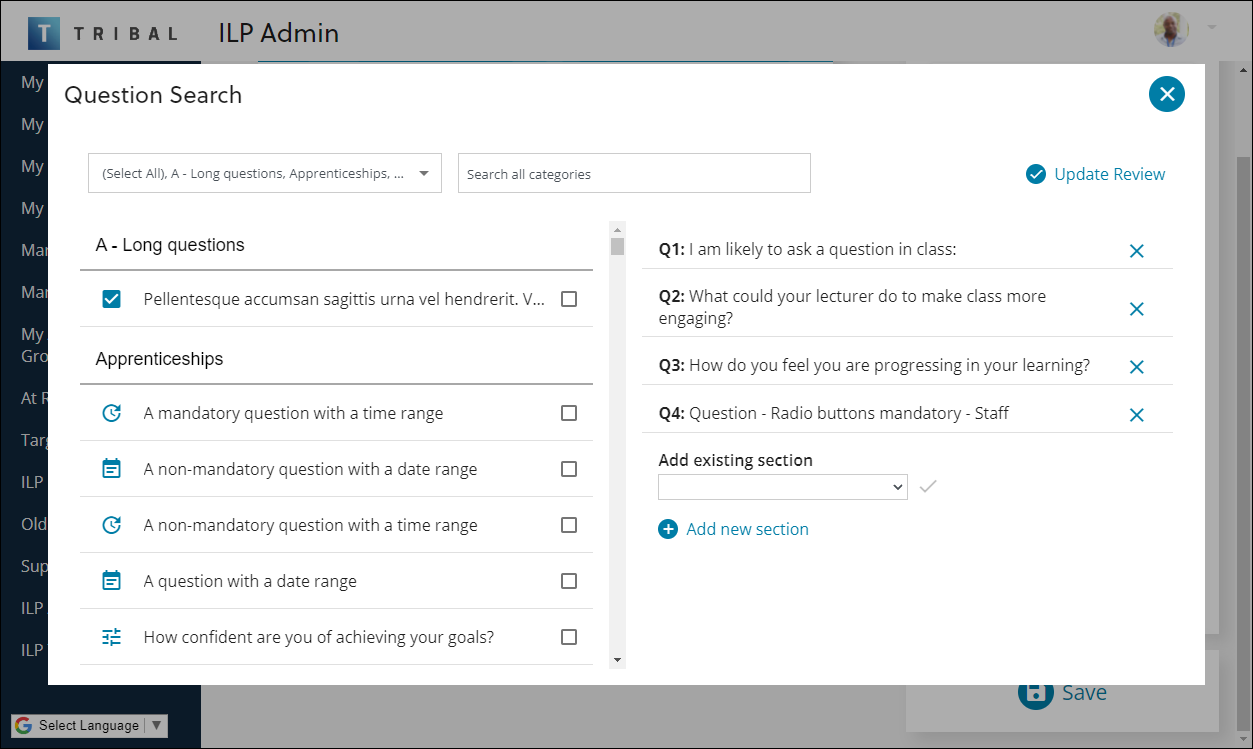
The Question Search window is displayed.
-
Use the following filter fields to locate the relevant bank of questions as required.
-
Categories drop-down - use this to select the categories (as defined on the Categories screen with a type of 'Review') to display
-
Search all categories - use this field to enter the name of the relevant category or review name.
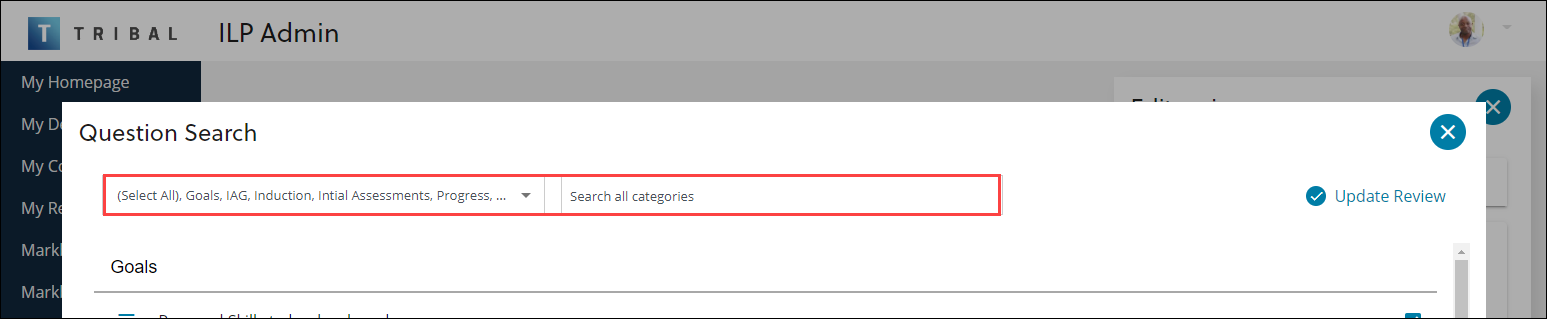
The list is updated immediately.
-
-
Select the relevant questions that you want to include.
-
If you want to split the questions into sections, select the relevant section from the Add existing section drop-down list and then select the tick button. Alternatively, select the Add new section button and enter a new section name.
Important.A newly added section will be added to the drop-down for future use.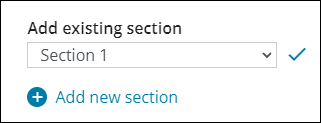
-
Select the Update Review button.
 Important.You can include questions from more than one category, if required, but you cannot add the same question twice.
The questions are displayed in the 2. Questions & Sections section and in blocks at the bottom of the review editor.
-
Select and drag the questions and sections into the relevant order using the blocks at the bottom of the screen, as required. The changes are replicated immediately in the 2. Questions & Sections section.
-
Select Save .
Activate or deactivate a review
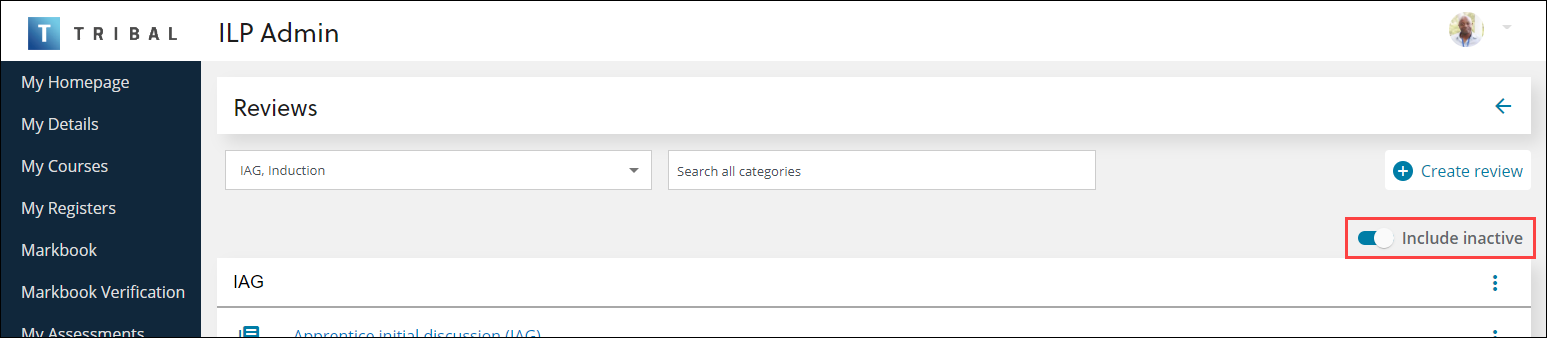
Reviews can be made inactive if they are no longer in use. Inactive reviews are displayed in grey, provided the Include Inactive toggle is selected.
A review that is made inactive will not be available to be selected for future use, but if it is already in use, it will be unaffected and can continue to be used.
To activate or deactivate a review:
-
Use the filters to locate the relevant review.
-
Ensure the Include Inactive toggle is selected if you want to activate an inactive review.
-
Select the ⋮ drop-down menu of the relevant record and then select the Mark Active or Mark Inactive option, as required.

Delete a review
You can only delete a review if it is not associated with any ILPs.
To delete a review:
-
Ensure the Include Inactive toggle is selected if you want to delete an inactive review.
-
Use the filters to locate the relevant review.
-
Select the ⋮ drop-down menu of the relevant record and then select the Delete option.

A confirmation message is displayed.